
Sign into picasa web and blogger. It's easier if you keep them both open in different tabs or windows.
To add a slideshow, click on the album in picasa. On the left column, there is a link "embed slideshow". It will give you some options...make it large, and everything else is fine. Highlight the HTML it gives you and copy it.
Go to blogger. Go to "New Post". Type what you need to. Above where you type, on the right side, there are 2 tabs-"edit html" and "compose". Switch to "edit html". Find the spot in your text you want the slideshow to go, and paste. That's it! Publish away.
To add a picture, you can just upload it from your computer, which is easy enough, or you link to a picture in picasa. In picasa, find the picture you want. Click on it. On the right side, there is a button "link to this photo". Click that, then change the size to "medium". Highlight and copy the text in the box labeled "HTML to embed in website". The part in blogger is the same as a slideshow...switch to HTML editing, and paste. Once you've done that, you can switch back to "Compose" and format a little better. I like to center or whatever after I've switched back to Compose.
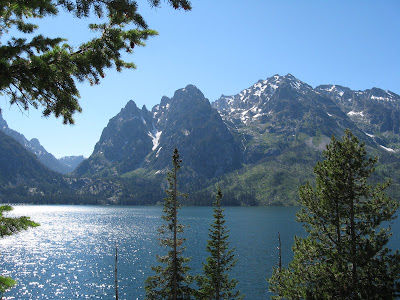
Pictures are awesome!! Here is a picture mom took on her trip, just so that I can walk through all the steps to make sure I explained each part.


No comments:
Post a Comment